

Getting started
This guide walks you through enabling the Hydrus Client API so hyAway can communicate with your Hydrus client.
Enable the Hydrus client API
The Client API lets external apps like hyAway communicate with Hydrus.
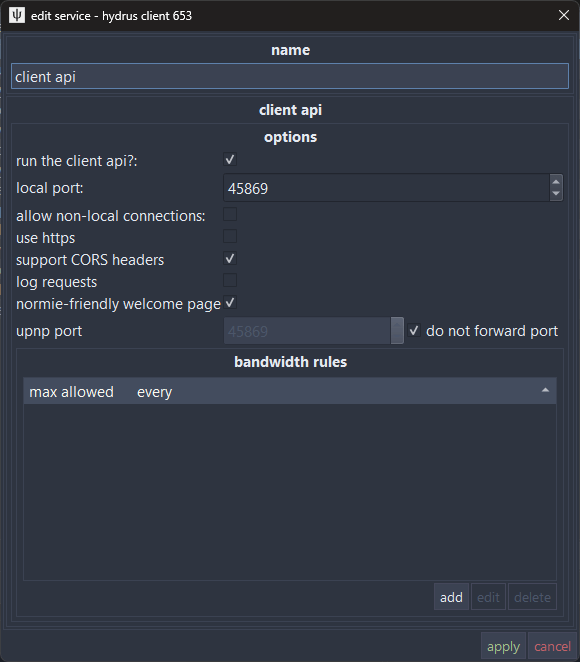
- In Hydrus, go to services → manage services
- Look for an existing client api service, or click add → client api to create one
- Set the port to
45869(Hydrus default) - Leave allow non-local connections unchecked (recommended). Only enable it if you plan to connect from another device on your Wi‑Fi/LAN without Tailscale.
- Check support CORS headers (required for connecting between hyaway.com and your own domain)
- Click Apply
Why CORS? When you visit hyaway.com, your browser runs code from that website. By default, browsers don't let websites talk to other servers (like your local Hydrus). This is a security feature called CORS. Enabling it tells Hydrus "it's okay for hyaway.com to connect to me."
Verify the API is running
Open your browser and navigate to:
http://127.0.0.1:45869You should see a welcome page.

Next step: Choose your setup
| I want to... | Recommended path |
|---|---|
| Use hyAway on this computer | Use the Same machine → |
| Use hyAway on my phone/tablet on the same Wi‑Fi | Use Tailscale (recommended, works at home too): Remote access with Tailscale → (or LAN (advanced): Local network →) |
| Use hyAway remotely (phone/tablet away from home) | Use Tailscale (recommended): Remote access with Tailscale → |
| Run your own hyAway instance | Self-hosting → |
Learn more about Hydrus
- hydrus network Documentation — Official docs
- Client API reference — API endpoints and parameters