

Connect to Hydrus
Connect hyAway to your Hydrus client by setting the API endpoint and access key.
Prerequisites
- Enable the Hydrus Client API
- Know your endpoint URL — see Access methods if you need remote access
TL;DR
- Set endpoint (same machine:
http://127.0.0.1:45869; Tailscale:https://my-computer.tail1234.ts.net) - Request/enter access key
- Press Check endpoint / Check API connection until both are green
Open connection settings
- Go to hyaway.com/settings/connection (or Settings → Connection)
- If using Tailscale, make sure it's connected on your device
Step 1: Set the API endpoint
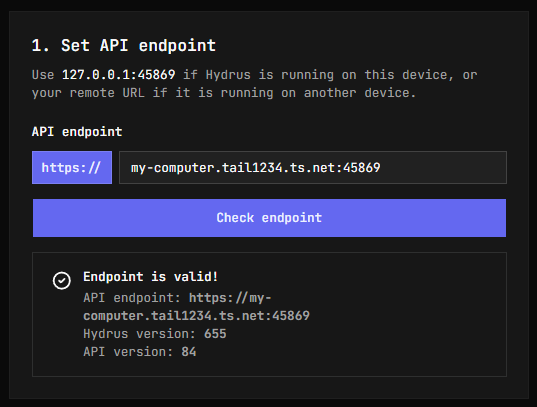
Enter your endpoint URL:
- Same machine:
http://127.0.0.1:45869 - Tailscale:
https://my-computer.tail1234.ts.net(orhttps://my-computer.tail1234.ts.net:45869if you configured Serve to keep the port) — see Remote access with Tailscale - Local network (Wi‑Fi/LAN, advanced):
http://192.168.1.50:45869(see Local network access) - Custom setup (advanced): Your reverse proxy or VPN URL
Click Check endpoint to verify the connection. You should see the Hydrus and API version numbers.
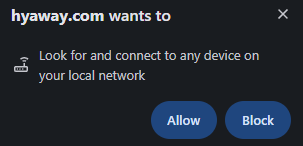
Note: Your browser may ask for permission to access your local network. This is expected — Tailscale addresses are treated as private network addresses. Click Allow to continue.
Step 2: Get an access key
Choose one of these options:
Option A: Request a new key (recommended)
In Hydrus:
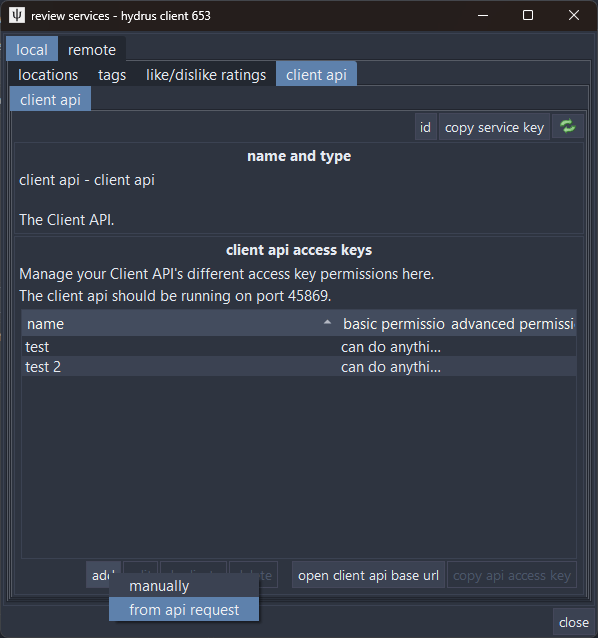
Go to services → review services
In the left panel, expand local and select client api
Click add → from api request — a dialog will appear waiting for the request
In hyaway.com:
- Click Request new API access key
Back in Hydrus:
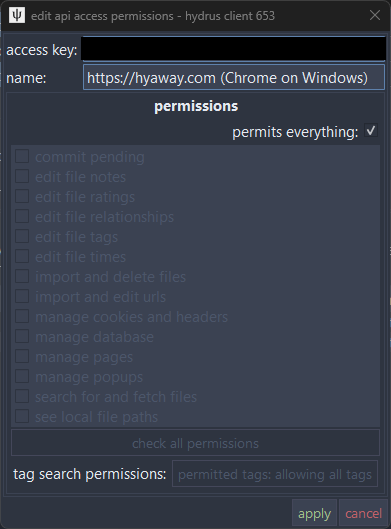
A permission approval dialog will appear — review the permissions and click Apply
In hyaway.com:
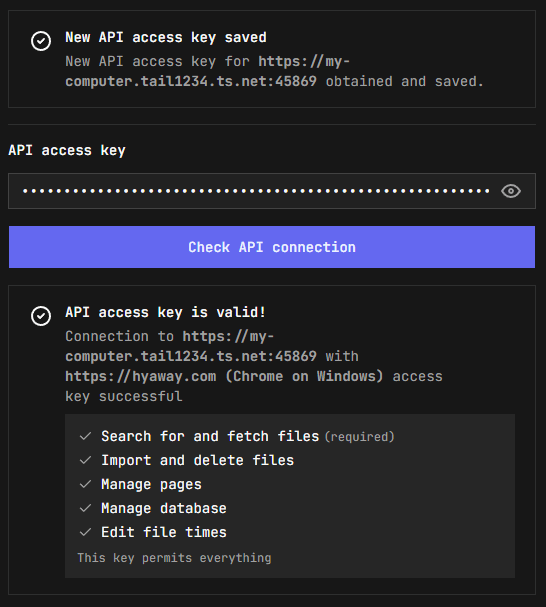
- You'll see New API access key saved — the key is stored automatically
- Click Check API connection to verify everything works
Note: If you see a "Complete the Hydrus permissions flow" message after checking, make sure you clicked Apply in the Hydrus dialog, then click Check API connection again.
Option B: Use an existing key
- In Hydrus, go to services → review services, then select local → client api in the left panel
- Click add → manually
- Give the key a name (e.g., "hyAway")
- Select the permissions you want to grant
- Copy the 64-character access key
- In hyaway.com, paste the key and click Check API connection
Step 3: Verify connection
Once configured, you'll see these success messages in each card:
- Endpoint is valid!
- API access key is valid!
- Session key is valid!
Step 4: Start browsing
At this point, hyAway should be connected to your Hydrus client and you can start browsing.
Try visiting Search to build a query, Pages to see your Hydrus pages, or Review queue to start sorting inbox files.
Permissions reference
hyAway requests these permissions from the Hydrus Client API:
| Permission | Required | Purpose |
|---|---|---|
| Search for and fetch files | ✓ Yes | Core functionality — searching, browsing, and viewing files |
| Import and delete files | Optional | Archive/trash file management |
| Manage pages | Optional | View and interact with Hydrus pages |
| Manage database | Optional | Access thumbnail dimensions and namespace colors |
| Edit file times | Optional | Sync view statistics to Hydrus |
| Edit file ratings | Optional | Set file ratings |
| Edit file tags | Optional | Save and remove favourite tags |
You can grant all permissions or only the ones you need.
Troubleshooting
"Connection refused" or "Network error"
- Check Hydrus is running and the Client API is enabled
- Verify the port is
45869(or matches your configuration) - Check the URL — use
https://for Tailscale URLs - Confirm Tailscale is connected on both your device and home computer
"403 Forbidden" when requesting access key
- Make sure you have the "add → from api request" dialog open in Hydrus
- The dialog must be open before you click the request button in hyaway.com
"419 Session Expired"
hyAway automatically refreshes expired sessions. If it persists:
- Check that your access key is still valid in Hydrus
- Try Settings → Connection → Reset and reconfigure
Can't reach Hydrus
Same machine setup:
- Confirm Hydrus is running and
http://127.0.0.1:45869loads in your browser
Tailscale setup:
- Confirm
tailscale serveis running on your home computer - Verify you're using the correct Tailscale URL (run
tailscale statusto check) - On the home computer, confirm
http://127.0.0.1:45869loads in a browser - Ensure Tailscale is connected on your current device
Security notes
Access keys vs session keys
- Access key: long-lived secret (treat it like a password). In Hydrus terms, the access key is the account.
- Session key: short-lived key derived from the access key. Session keys expire, and they also reset when the Hydrus client restarts.
hyAway uses session keys by default, which means:
- Your access key is only used to obtain a session key when needed, rather than being sent with every API request.
- If the Hydrus client restarts (or the session expires), hyAway will request a fresh session key automatically.
hyAway stores your endpoint + keys in your browser's local storage.