hyAway Setup Guide
Connect hyaway.com to your Hydrus Network client.
Choose your setup
| Setup | Best For | Difficulty |
|---|---|---|
| Same Machine | Using hyaway.com on the same computer as Hydrus | Easy (~2 min) |
| Remote Access | Accessing Hydrus from your phone, laptop, or another device | Medium (~10 min) |
Already have remote access configured? If you're using a reverse proxy, VPN, or another method to expose Hydrus remotely, that will work as well. Just use your existing URL in the Connect from hyaway.com section.
Enable the Hydrus client API
This step is required for both setups.
The Client API lets external apps like hyAway communicate with Hydrus.
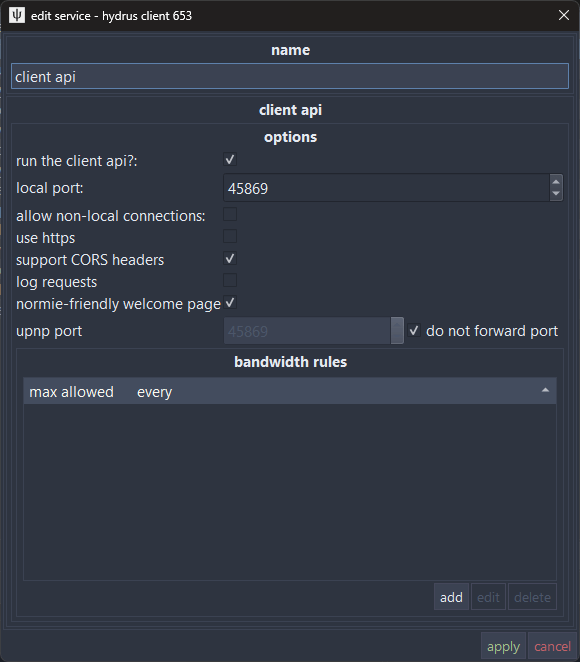
- In Hydrus, go to services → manage services
- Look for an existing client api service, or click add → client api to create one
- Set the port to
45869(Hydrus default) - Leave allow non-local connections unchecked (both same-machine and Tailscale setups use local connections)
- Check support CORS headers (required for connecting between hyaway.com and your own domain)
- Click Apply
Why CORS? When you visit hyaway.com, your browser runs code from that website. By default, browsers don't let websites talk to other servers (like your local Hydrus) — this is a security feature. Enabling CORS tells Hydrus "it's okay for hyaway.com to connect to me."
Verify the API is running
Open your browser and navigate to:
http://127.0.0.1:45869You should see a welcome page.

Setup A: Same machine
Use this setup if you're browsing hyaway.com on the same computer where Hydrus is running.
Your endpoint URL is: http://127.0.0.1:45869
That's it! Skip to Connect from hyaway.com.
Setup B: Remote access with Tailscale
Use this setup to access Hydrus from your phone, laptop, or any other device.
┌─────────────────┐     Tailscale      ┌──────────────────────┐
│  Your Phone/    │◄──── secure ──────►│  Home Computer       │
│  Laptop         │      tunnel        │                      │
│                 │                    │  ┌────────────────┐  │
│  hyaway.com ────┼────────────────────┼─►│ Hydrus :45869  │  │
│                 │                    │  └────────────────┘  │
└─────────────────┘                    └──────────────────────┘
Tailscale creates an encrypted, private network between your devices — no port forwarding or firewall configuration needed.
Install Tailscale
- Download and install Tailscale on your home computer (where Hydrus runs)
- Install Tailscale on any devices you want to access Hydrus from (phone, laptop, etc.)
- Sign in with the same account on all devices — this creates your tailnet (your private Tailscale network)

Expose Hydrus via Tailscale Serve
On your home computer, open a terminal:
- Windows: Press
Win + Xand select Terminal or PowerShell - Mac: Open Terminal from Applications → Utilities
- Linux: Open your terminal app
Run this command to start Tailscale Serve in background mode:
tailscale serve --bg --https 45869 http://127.0.0.1:45869This command means: "Proxy
http://127.0.0.1:45869(local Hydrus) to HTTPS port 45869 on my tailnet." The--bgflag runs it in the background so you can close the terminal.Want to try it temporarily first? Run without
--bgto test. PressCtrl+Cto stop when done.To disable later: Run
tailscale serve --https=45869 offto stop exposing Hydrus.
If this is your first time using Tailscale Serve, it will prompt you to enable HTTPS for your tailnet.
You'll see output like:
Available within your tailnet:

https://my-computer.tail1234.ts.net:45869/
|-- proxy http://127.0.0.1:45869

Serve started and running in the background.
To disable the proxy, run: tailscale serve --https=45869 off
Take note of your Tailscale URL (e.g., https://my-computer.tail1234.ts.net:45869) — you'll need it in the next step. You can also find this in the Tailscale app by clicking on your machine name to copy it.
Connect from hyaway.com
- Open hyaway.com/settings/connection (or go to Settings → Connection from the homepage)
- If using Tailscale, make sure it's connected on your device
Step 1: Set the API endpoint
Enter your endpoint URL:
- Same machine:
http://127.0.0.1:45869 - Tailscale:
https://my-computer.tail1234.ts.net:45869(your URL from the previous step)
Click Check endpoint to verify the connection. You should see the Hydrus and API version numbers.
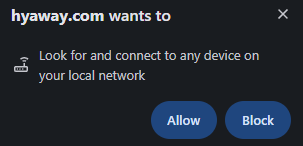
Note: Your browser may ask for permission to access your local network. This is expected — Tailscale addresses are treated as private network addresses. Click Allow to continue.

Step 2: Get an access key
Choose one of these options:
Option A: Request a new key (recommended)
In Hydrus:
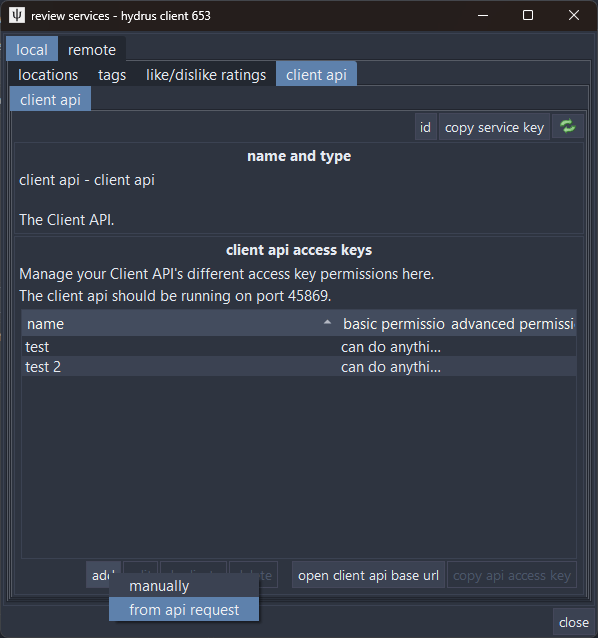
Go to services → review services
In the left panel, expand local and select client api
Click add → from api request — a dialog will appear waiting for the request
In hyaway.com:
- Click Request new API access key
Back in Hydrus:
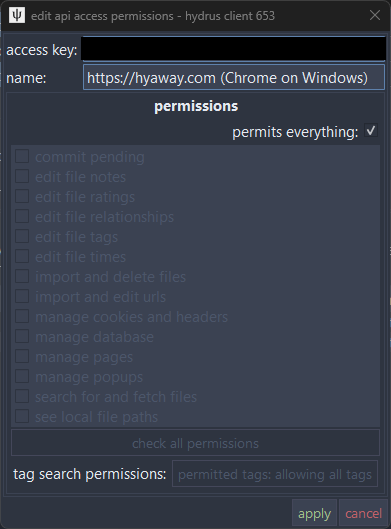
A permission approval dialog will appear — review the permissions and click Apply
In hyaway.com:
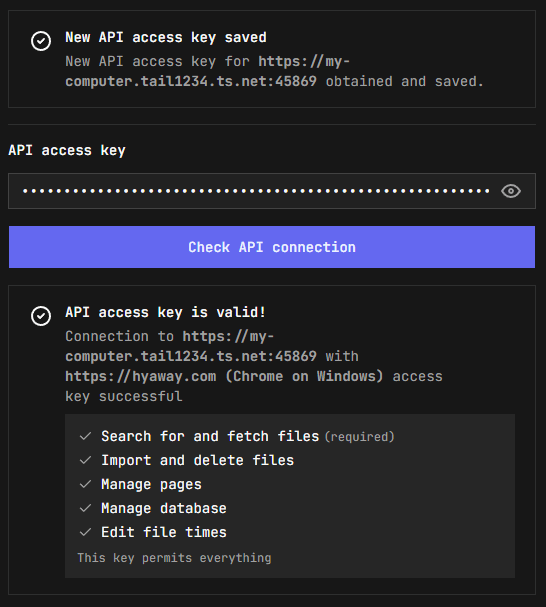
- You'll see New API access key saved — the key is stored automatically
- Click Check API connection to verify everything works
Note: If you see a "Complete the Hydrus permissions flow" message after checking, make sure you clicked Apply in the Hydrus dialog, then click Check API connection again.
Option B: Use an existing key
- In Hydrus, go to services → review services, then select local → client api in the left panel
- Click add → manually
- Give the key a name (e.g., "hyAway")
- Select the permissions you want to grant
- Copy the 64-character access key
- In hyaway.com, paste the key and click Check API connection
Step 3: Verify connection
Once configured, you'll see these success messages in each card:
- Endpoint is valid!
- API access key is valid!
- Session key is valid!
Step 4: Start browsing
At this point, hyaway.com should be connected to your Hydrus client and you can start browsing. e.g. Pages
Permissions reference
hyAway requests these permissions from the Hydrus Client API:
| Permission | Required | Purpose |
|---|---|---|
| Search for and fetch files | ✓ Yes | Core functionality — browsing and viewing files |
| Import and delete files | Optional | Archive/trash file management |
| Manage pages | Optional | View and interact with Hydrus pages |
| Manage database | Optional | Access thumbnail dimensions and namespace colors |
| Edit file times | Optional | Sync view statistics to Hydrus |
You can grant all permissions or only the ones you need.
Troubleshooting
"Connection refused" or "Network error"
- Check Hydrus is running and the Client API is enabled
- Verify the port is
45869(or matches your configuration) - Check the URL — use
https://for Tailscale URLs - Confirm Tailscale is connected on both your device and home computer
"403 Forbidden" when requesting access key
- Make sure you have the "add → from api request" dialog open in Hydrus
- The dialog must be open before you click the request button in hyaway.com
"419 Session Expired"
hyAway automatically refreshes expired sessions. If it persists:
- Check that your access key is still valid in Hydrus
- Try Settings → Connection → Reset and reconfigure
hyaway.com can't reach Hydrus
Same machine setup:
- Confirm Hydrus is running and
http://127.0.0.1:45869loads in your browser
Tailscale setup:
- Confirm
tailscale serveis running on your home computer - Verify you're using the correct Tailscale URL (run
tailscale statusto check) - On the home computer, confirm
http://127.0.0.1:45869loads in a browser - Ensure Tailscale is connected on your current device
Finding your Tailscale URL
Run this command on your home computer:
tailscale statusLook for your machine name and domain, e.g., my-computer.tail1234.ts.net
Security notes
Why Tailscale?
Tailscale creates an encrypted, private network between your devices. When you use Tailscale Serve:
- Hydrus is only accessible to devices on your tailnet — not the public internet
- All traffic is encrypted end-to-end
- You don't need to open ports on your router or configure firewalls
- Your Hydrus instance remains "local only" — Tailscale handles the secure tunneling
Access keys vs session keys
- Access key: long-lived secret (treat it like a password). In Hydrus terms, the access key is the account.
- Session key: short-lived key derived from the access key. Session keys expire, and they also reset when the Hydrus client restarts.
hyAway uses session keys by default, which means:
- Your access key is only used to obtain a session key when needed, rather than being sent with every API request.
- If the Hydrus client restarts (or the session expires), hyAway will request a fresh session key automatically.
hyAway stores your endpoint + keys in your browser's local storage.
Tailscale Serve vs Funnel
- Tailscale Serve: Private, only accessible to your tailnet
- Tailscale Funnel: Valid only if you explicitly want public access. It is not private, anyone on the internet can try to connect.
Stopping Tailscale Serve
If using Tailscale and you want to stop exposing Hydrus:
# If running in foreground: press Ctrl+C

# If running in background:
tailscale serve --https=45869 off